


Hey everyone,
Small finding I wanted to share for those of you who prefer a cleaner workspace.
A common complaint is that Intercom is browser-only, but there's a neat trick to make it feel like a proper desktop app, at least visually. No extra software needed.
Here's how:
Press Windows + R, type the following, and hit Enter:
chrome --app=https://app.intercom.comIn the code snippet above and in the following snippets below, the command is shown as chrome -, but it should be chrome - - (double dash). However, the markdown editor converts this to just one dash. If you simply copy the commands everywhere, it will always be correct!
This opens Intercom in a stripped-down Chrome window: no tabs, no address bar, no browser toolbar. It sits in your taskbar like any other app and feels much more focused.
To be clear: this doesn't improve performance, loading times, or anything under the hood. It's purely a visual/UX improvement for those who like a dedicated window without browser distractions.
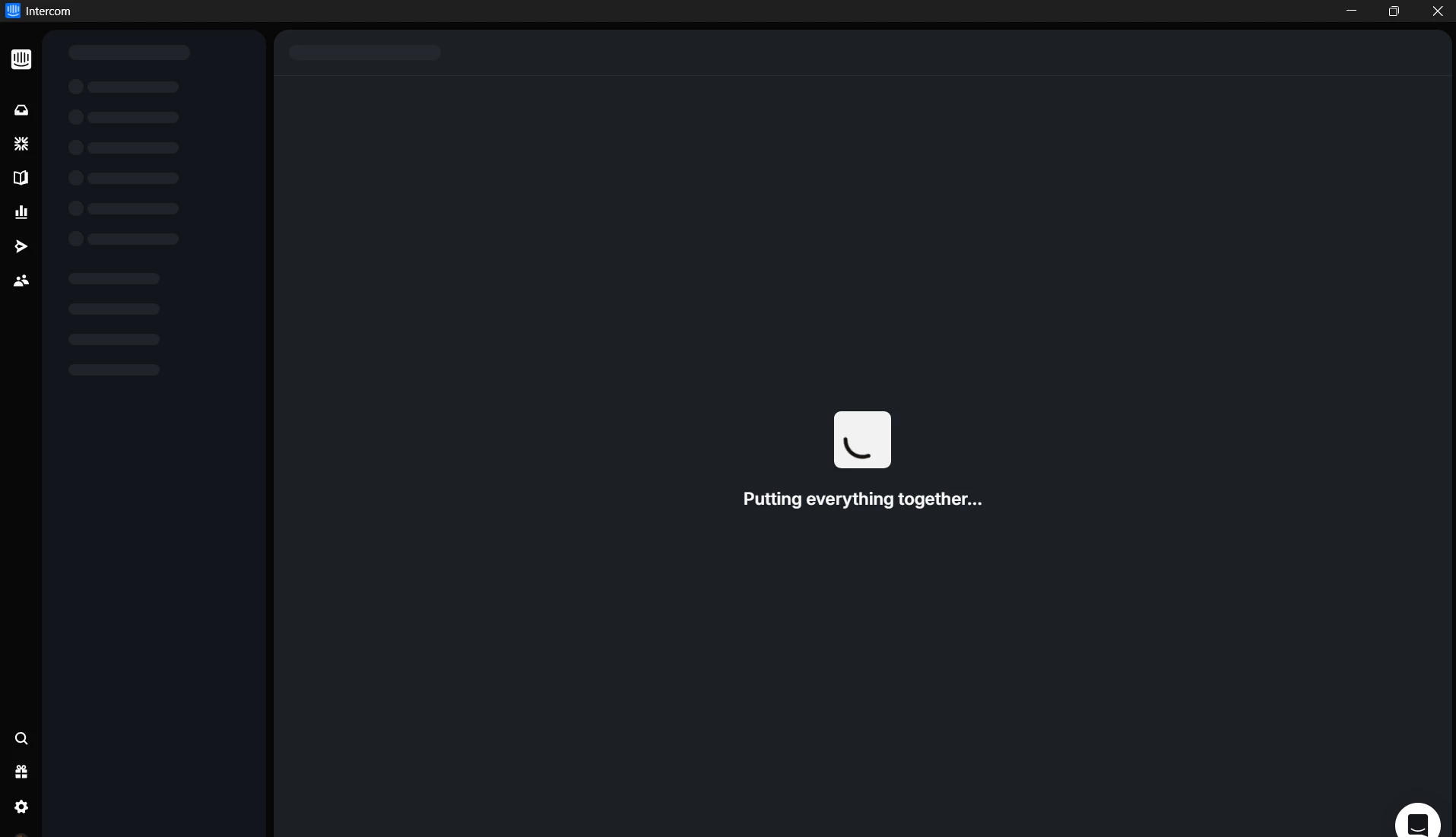
Want to go further? Pin it to your taskbar as a proper shortcut.
You can turn this into a real taskbar shortcut, here's how:
- Right-click your desktop → New → Shortcut
- For the location, you'll need the full path to Chrome, not just
chrome. Use one of these:
"C:\Program Files\Google\Chrome\Application\chrome.exe" --app=https://app.intercom.comor, if Chrome was installed per-user:
"C:\Users\%USERNAME%\AppData\Local\Google\Chrome\Application\chrome.exe" --app=https://app.intercom.comNot sure where Chrome is installed? Find Chrome in your Start menu → right-click → Open file location → right-click the Chrome icon → Properties → Copy path.
Insert this path in this line:
"%YOURPATH%" --app=https://app.intercom.com
- Give it a name (e.g. "Intercom") and finish the wizard
- Right-click the new shortcut → Pin to taskbar
Want to go even further? Swap out the default Chrome icon for something nicer
By default the shortcut will show Chrome's logo, which looks a bit odd. You can change it to any icon you like:
- Right-click your shortcut → Properties
- Click Change Icon...
- Point it to a custom
.icofile
I found the official Intercom favicon by opening DevTools (F12) → Network tab, reloading the page, and filtering on
"ico", the favicon request popped right up. You can grab it directly from this URL:https://static.intercomassets.com/assets/favicon-063ab7a404fddefabaef270121d445ad7838033b911d144b7c49cf7302a5ce8e.pngConvert it to
.icousing icoconverter.com, then point your shortcut to that file via Properties → Change Icon.
This way it genuinely looks like a standalone Intercom app sitting in your taskbar, most people won't even notice it's running in a browser.
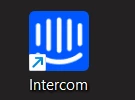
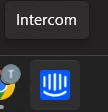
Hope this helps someone! Would love to know if others have been using something similar, or if you would start using this!
If you have any questions, please let me know!