


















Expand Fin to email is now live on Fin Academy!
Recently active
You can use AI tools like Claude or ChatGPT to: Repurpose internal content: Quickly convert internal documents and product updates into customer-friendly Help Center articles. Review and rewrite: Rephrase content to match customer language. Ensure proper formatting (headers, bullet points, etc.). Clarify ambiguous terms. Using AI tools works really well if you create a style guide with the structure, formatting, tone of voice, and template you'd like AI to use when generating articles for your Help Center. Once you’ve got a style guide, try using it with these AI prompts:New content creation You are an expert technical writer. Goal: Transform the attached “[name of internal document]” into a polished, customer-friendly Help Center article that strictly follows the attached “[name of Style Guide]”. The finished piece must be easy for humans to read and for AI systems to parse and extract structured information. Use only facts present in the internal doc. Do not inve
We noticed a recurring issue in some of our Fin-involved conversations. Fin was surfacing Help Center content that included phrases such as "please contact support" or "reach out to us through the Messenger."While this wording makes sense when someone is reading an article independently, it can cause confusion during a live support interaction. When Fin presents this type of content mid-conversation, it can give the impression that the customer is not already receiving support. This creates friction and can lead to drop-off.To improve the experience, we provided more specific guidance for Fin to follow. We instructed it not to include phrasing that directs customers to contact support, since they are already in a support conversation. Instead, Fin should treat the interaction as part of the support experience by either providing the information the customer needs or asking for clarification to help resolve the issue.This change reduced unnecessary loops and made Fin feel more integrate
“We’re outperforming our wildest dreams.”When ZayZoon, a Calgary-based fintech on a mission to save 10 million people $10 billion, set out to put AI at the heart of customer service – they aimed high.With Fin, they’ve already gone beyond. Hear Simon Millichip, SVP of Customer & Risk Operations at ZayZoon walk through how they've achieved:→ An 80%+ self-service rate (well ahead of target)→ $ millions saved in operational costs→ 50,000 conversations handled per month→ Automated document reviews & approvals via APIsFrom instant access to funds at gas stations to streamlining risk operations, this is a real-world example of AI transforming customer experience at scale.
Recently we made a small change with a big impact in our Intercom workspace. We’ve now enabled Fin to re-engage customers if their conversation hasn’t been picked up yet. After a set wait time, Fin checks back in: “While you're waiting, would you like to chat with me (Fin AI Agent)?” If the customer says yes, Fin will attempt to resolve the customers issue. If not, the conversation stays right where it is in the team queue. Why this matters?Because it’s a game-changer for speed and efficiency. We’re seeing more conversations resolved automatically, fewer customers waiting around, and less work piling up for the team. How to enable it in your workspace: Go to your Workflows page Create a new workflow using the If teammate has been unresponsive trigger In your audience rules select the team inbox(es) you want this to fire in, and the amount of time the Workflow should wait before firing (e.g. teammate has been unresponsive for 1 hour, this means the conversation has been waiting an h
Hey everyone, I’m Beth, Help Center Manager here at Intercom. Besides creating articles, one of the most important duties of managing a Help Center is making sure those articles are kept up-to-date and helpful. Our articles are not only used by our customers, but are also seen and shared by our support reps. Equipped with their deep knowledge of Intercom’s products and features, they’re often the first ones to spot content that looks stale or inaccurate, so who better to flag it than our own Support team, and what better place than from the article itself? By setting up an inbound Workflow from our Help Center, support reps can make article update requests or submit new article ideas, straight from the Messenger. Their request details can either be captured in the conversation thread, or by sending a ticket. These requests are automatically triaged into a specific Workflows, where I can easily pick them up. Tickets are great for capturing all the details needed to action the request, a
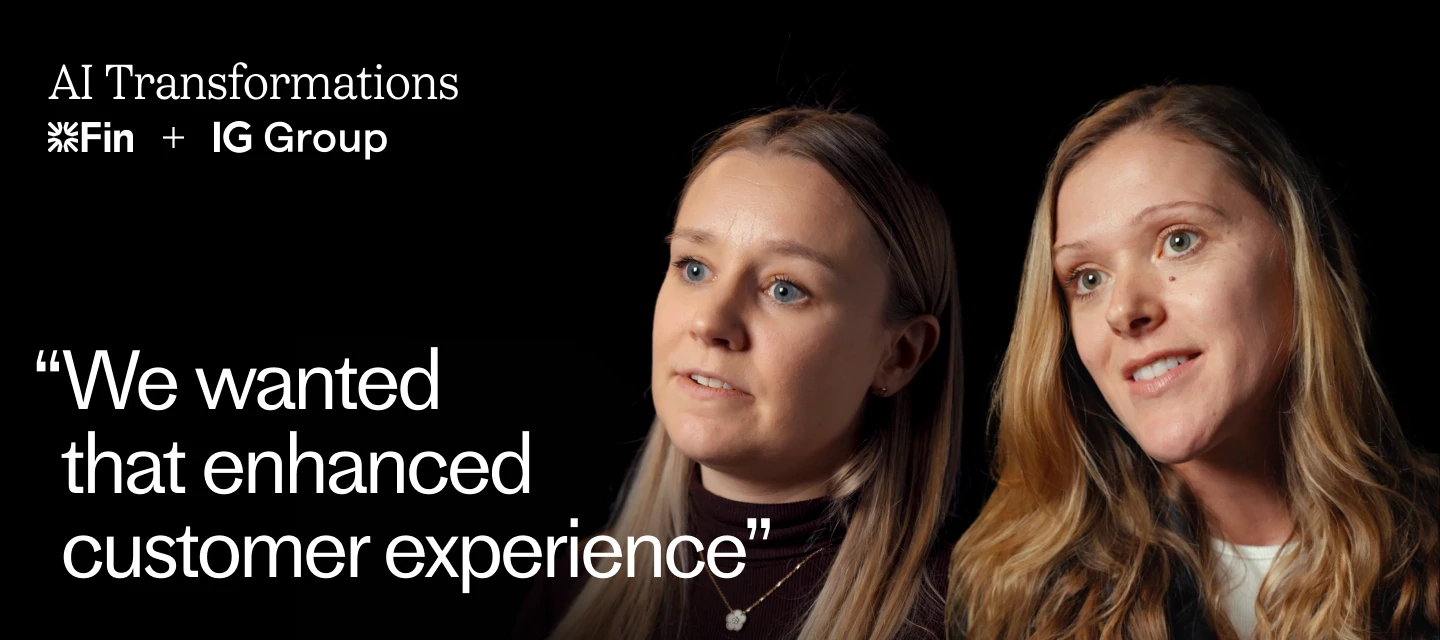
For IG Group, a global leader in online trading and investing, every customer service interaction carries weight. Their customers are making decisions about their money, their futures, and their long-term goals.In this video, Hannah Reid, Chief of Staff, and Hayley Gibbs, Head of T&O Transformation Insights, share how IG Group is reimagining the future of client support with Fin, Intercom’s AI Agent.Their goal wasn’t to cut costs, it was to free their human teams to focus on the moments that truly matter. By shifting routine, high-volume queries to AI, they’re enabling their specialists to deliver the kind of support that turns good service into exceptional experiences.Since adopting Fin, IG Group has:→ Delivered CX Scores in the 90s across channels→ Achieved up to 70% deflection on chat→ Scaled AI support across email, chat, WhatsApp, and multiple languages→ Reduced operational load on human teams→ Accelerated automation far beyond initial expectationsFor a highly regulated, highl
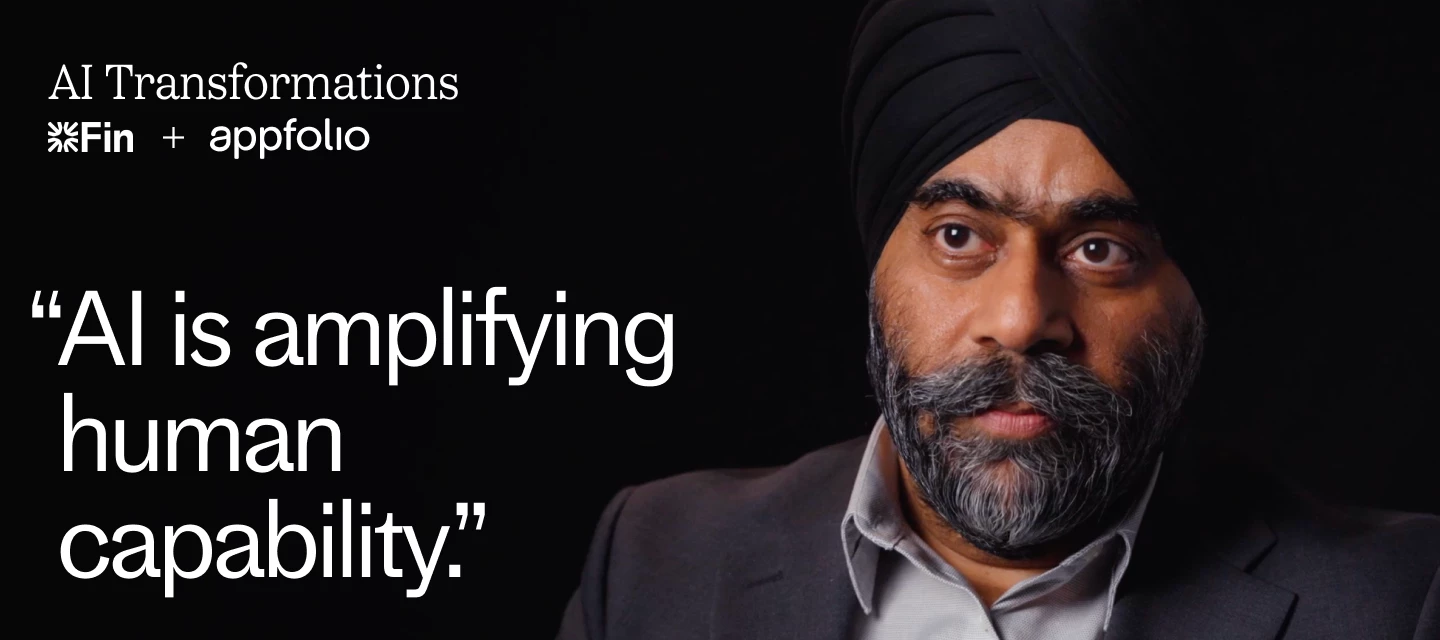
Scaling support in real estate is uniquely challenging: millions of residents, time-sensitive requests, and customers that rely on fast, accurate answers. For AppFolio, who supports 20,000+ property management companies, customer service is, "the heartbeat of why customers are actually buying the software itself."In this video, Guneet Singh, Vice President of Customer Experience & Care, shares how his team moved from a fully human support model to one where Fin, their AI Agent, now handles the majority of frontline conversations with remarkable quality and consistency.Since adopting Fin, AppFolio has:✅ Reached 60–70% AI involvement across support✅ Achieved 60–65% end-to-end resolutions✅ Delivered instant, conversational help instead of canned responses✅ Held an industry-leading CX Score of 93%✅ Empowered their teams through no-code AI configuration✅ Begun redefining roles - from agents to AI leaders and supervisors.This is a shift toward a future where AI amplifies human capability
Have you ever found yourself pounding your head against the wall trying to figure out a simple way for your team to delete a single Conversation in Intercom? For a long time the only way to delete a conversation was by deleting the Intercom User or Lead associated with the Conversation. But by doing this you not only delete that single Conversation, you also delete that User/Lead and every other conversation that is associated with them. Recently our Engineering team added a ‘Delete a Conversation’ call to the Unstable version of our REST API. This new endpoint allows your team to delete a single conversation from your Intercom workspace without having to delete the associated Intercom Contact! This is a step in the right direction, but making an API call isn’t always super convenient. Also, those three letters API, can strike fear in the hearts of those customers who don’t have a little bit of coding experience under their belt. What follows is a solution for deleting a single convers
Most teams switch on Fin and hope for the best. The best teams build a ritual.In this episode of Support Stack, Conor Pendergrast (CustomerSuccess.cx) and Jen Weaver (Supportman) show you how just 15 minutes a day reviewing Fin’s conversations can transform your AI performance and customer outcomes.What you’ll learn in this episode:🔍 Where to find the conversations Fin couldn’t resolve🛠 How to turn those conversations into better answers with snippets and articles⚖️ Why snippet sprawl is a hidden risk — and how to avoid it📈 The habits that help Fin (and your team) get smarter every dayIf you’re using Intercom and want to get serious about AI-powered support, this conversation will give you practical steps you can use immediately.Subscribe for more behind-the-scenes looks at how real teams are making Intercom work in the wild.
Guessing where to improve Fin wastes time. Topics Explorer shows you the exact conversations where Fin struggles so you can fix what matters first. In this Support Stack episode, Jen Weaver (Tettra) and Conor Pendergrast (CustomerSuccess.cx) walk through:Selecting the right scope and metric to surface real opportunities Generating a Testing Group from past conversations by topic Rating answers with keyboard shortcuts and product-expert notes Deciding whether the fix is content (articles/snippets), data (attributes/connectors), or actions (Fin Tasks) Preventing wrong-product answers by pushing the right user attributes into Intercom and guiding Fin accordinglyYou’ll see a real example where a new product area had a low resolution rate due to thin documentation and missing signals. We show how to diagnose it and plan the quickest path to better answers. Perfect for support leaders and ops folks who want a pragmatic, measurable way to lift Fin’s resolution rate without boiling the ocean.
Tired of getting customer messages that just say “It’s broken”? In this episode of Support Stack, Jen Weaver from Supportman shows Conor Pendergrast (CustomerSuccess.cx) exactly how they trained Fin to clarify error details before the ticket ever hits an agent.We go behind the scenes in Intercom’s Fin guidance settings so you can see the wording, the workflow, and the real impact this setup has on reducing back-and-forth.Practical, real-world Intercom examples — no theory, no fluff.
What changed when Pupil Progress pushed Intercom’s Fin to the front of their support flow and rewrote their help centre for humans and AI? In this episode of Support Stack, Conor Pendergrast (CustomerSuccess.cx) interviews Tobi Davis (Head of Customer Experience, Pupil Progress) about how Tobi’s team lifted Fin’s resolution rate from ~55% to ~75% in about two months, and why it now holds steady at 75–80% weekly. You’ll learn: Why going AI-first with a clear “talk to a human” option lets users self-select the path they want How to rewrite your help centre for two audiences: people and Fin The role of audiences and attributes so answers change by role, subject or context When to use custom answers, snippets and narrow articles for precise guidance Why they focused on content and data before actions or procedures How tools like CX Score and Topic Explorer guide the next set of improvements Who this helps: Small support teams trying to scale quality without growing headcount
Check out the success story driven by our Intercom Community Top Expert @Nathan Sudds 🚀 Full Story Here
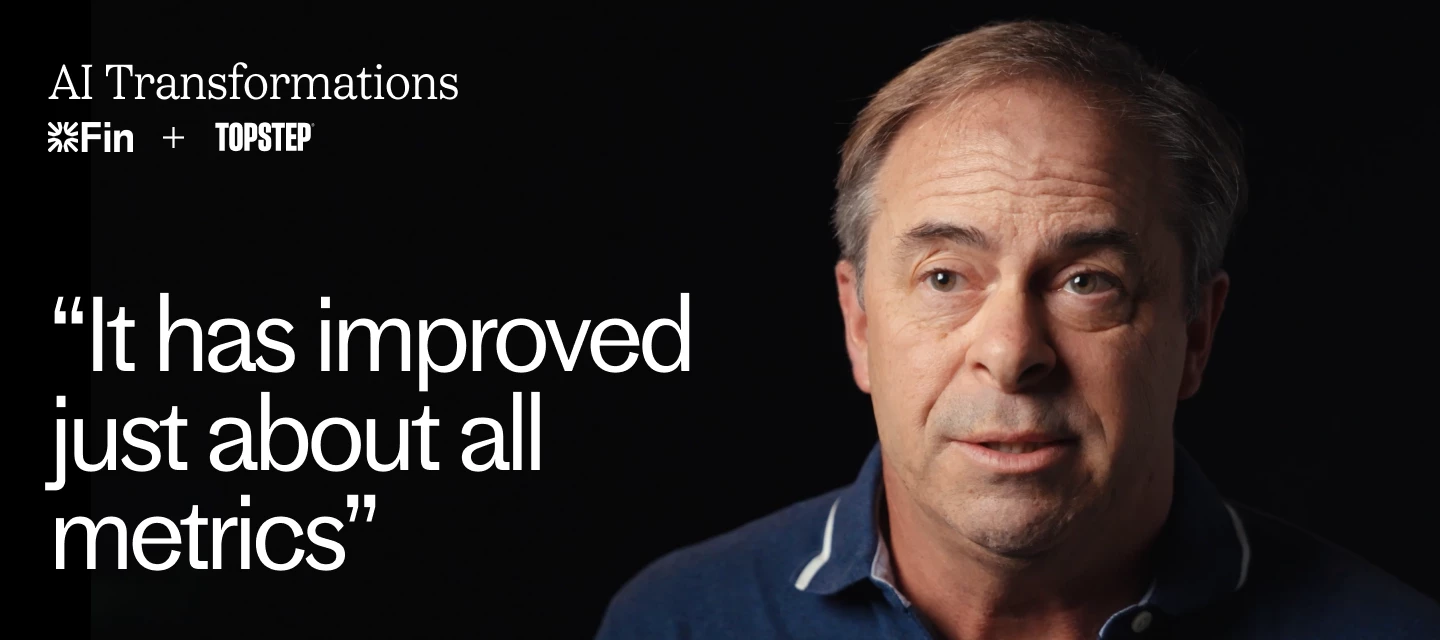
In trading, every second counts. Customer support has to move just as fast.In this video, Dennis O’Connor, Director of Support at Topstep, shares how his team handles over 150,000 conversations each month across chat, email, WhatsApp, SMS, and phone – and how Fin, Intercom’s AI agent, helped them scale support while improving speed, accuracy, and service quality.With Fin Voice, their AI phone support, Topstep can now resolve customer questions instantly, from account balances to trading performance, even at 2 AM on the other side of the world. Since adopting Fin, Topstep has:✅ Reached 97% AI involvement across support channels✅ Increased resolution rates to 65%✅ Cut resolution times in half (under one hour)✅ Delivered 24/7 multilingual service through chat, voice, and messaging✅ Raised CSAT scores while scaling without extra headcountFor Topstep, AI is about amplifying their human team, turning every channel into a faster, smarter, round-the-clock experience for traders everywhere.Whet
“The confidence in Fin comes from the data. When you look at the numbers, you can’t really deny what’s happening.”At Underdog, one of the fastest-growing fantasy sports gaming companies on the market, major player updates can trigger tens of thousands of customer inquiries within minutes.Customer expectations are high, support has to handle daily volume surges in real time, and compliance isn’t optional. To meet growing demand without sacrificing quality, the team turned to Fin – not to replace their support team, but to help them scale smarter. Andre Gamboa, Director of Customer Support, shares how Fin has helped Underdog:→ Deflect 7,000+ tickets in 48 hours→ Resolve inquiries at 2x the rate of previous workflows→ Automate updates on withdrawals, deposits, and entry status→ Ensure every response meets regulatory requirements→ Reallocate agents to focus on high-value conversationsBefore Fin, rapid growth meant hiring and training more agents. Now, Underdog can support their customers
This recipe will guide you through how to set up a workflow that adds a note, applies tags, or inserts an AI summary note when a conversation is assigned to a team. Check out the video walkthrough here on how to set up this workflow. 👇 Step 1: Start a new workflow Navigate to the Workflow section of your workspace here. Click the + New Workflow button, typically located in the top-right corner of the screen. From the options presented, choose to build your workflow from scratch.Select Create from scratch. Step 2: Select your trigger Choose the Trigger from Internal process: If teammate has been unresponsive. This Trigger activates the Workflow every time a teammate stops replying, not just the first time. Step 3: Configure trigger rules Inactivity Timer: Set the inactivity timer to control how long to wait for a response from the customer before the workflow is triggered. Audience: Add filters for the conversations if you'd only like the workflow to trigger for certain conversa
This Fin Task was designed to help customers quickly understand whether an issue they’re experiencing is related to a known incident, without needing to contact support directly. The goal was to make it feel fast, human, and reassuring while surfacing relevant technical information from our infrastructure. 🌍 Step 1: Detect the Customer’s Hosting RegionWe start by detecting the customer’s data hosting region, which is stored as a company-level attribute in Intercom. This attribute is critical — it allows the task to tailor its response and status checks to where the customer's workspace is hosted.Regions we support include:US Europe Australia If the region attribute is missing or unrecognized, the task defaults to US, and clearly explains this fallback behavior in the customer message (without speculating or misleading). 🔌 Step 2: Query the Incidents API via Region-Specific Data ConnectorsFor each supported region, we’ve set up a dedicated Fin Data Connector that calls our intern
Hey everyone 👋 My name is Ivan and I’m a Customer Support Engineer here at Intercom. You might’ve seen my face around if you messaged our support via the Messenger 👷🏼♂️ Here’s a sample Python scrip you can use to copy your articles from your US to your EU workspace 👇import requests# set parameters for US and EU endpoints/headersintercom_token_us = "<YOUR US TOKEN GOES HERE>"intercom_token_eu = "<YOUR EU TOKEN GOES HERE>"intercom_us_url = "https://api.intercom.io/articles"intercom_eu_url = "https://api.eu.intercom.io/articles"# header used to get the articles from US workspaceintercom_headers_us = { "Authorization": "Bearer " + intercom_token_us, "Accept": "application/json", "Content-Type": "application/json",}# header used to create the articles in EU workspaceintercom_headers_eu = { "Authorization": "Bearer " + intercom_token_eu, "Accept": "application/json", "Content-Type": "application/json",}# store all articles in a listarticles = []# get all ar
This recipe will guide you through how to set up a Workflow that automatically routes conversations to a specific team based on your requirements. Check out the video walkthrough here on how to set up this Workflow. 👇 Step 1: Start a new Workflow Navigate to Fin AI Agent > Workflows. Click the + New Workflow button. From the options presented, choose to Create from scratch. Step 2: Select your trigger First, select the appropriate Category for your Workflow. For this case, you will choose Start of Conversation. Next, you will choose the specific trigger: When a customer sends their first message. Step 3: Define the audienceNow you need to specify & narrow down the audience by configuring the following: Channels: Choose the channels from which the conversation originates. Filters: Add any additional filters to further refine which conversations are included. Once you have configured your audience, confirm your selections with the Done button to proceed. Step 4: Build
This recipe will guide you through how to set up a workflow that adds a note, applies tags, or inserts an AI summary note when a conversation is assigned to a team. Check out the video walkthrough here on how to set up this workflow. 👇 Step 1: Start a New Workflow Navigate to the Workflow section of your workspace here. Click the + New Workflow button, typically located in the top-right corner of the screen. From the options presented, choose to build your workflow from scratch. Step 2: Select Your Trigger First, select the appropriate Category for your workflow.For this case, you will choose Tickets only. Next, you will choose the specific trigger: If teammate changes the state of a ticket Step 3: Define the AudienceNow you need to specify which tickets will trigger this workflow. You can narrow down the audience by configuring the following: Ticket Type: Select the specific type of ticket that should trigger this notification. Channels: Choose the channels from which the ti
This recipe will guide you through how to set up a workflow that adds a note, applies tags, or inserts an AI summary note when a conversation is assigned to a team. Check out the video walkthrough here on how to set up this workflow. 👇 Step 1: Start a New Workflow Navigate to the Workflow section of your workspace here. Click the + New Workflow button, typically located in the top-right corner of the screen. From the options presented, choose to build your workflow from scratch. Step 2: Select Your Trigger First, select the appropriate Category for your workflow.For this case, you will choose Tickets only. Next, you will choose the specific trigger: When a ticket is created. Step 3: Define the Audience Now you need to specify which tickets will trigger this workflow. You can narrow down the audience by configuring the following: Ticket Type: Select the specific type of ticket that should trigger this notification. Channels: Choose the channels from which the tickets originat
This recipe will guide you through how to set up a workflow that adds a note, applies tags, or inserts an AI summary note when a conversation is assigned to a team. Check out the video walkthrough here on how to set up this workflow. 👇 Step 1: Start a New Workflow Navigate to the Workflow section of your workspace here. Click the + New Workflow button, typically located in the top-right corner of the screen. From the options presented, choose to build your workflow from scratch. Step 2: Select Your Trigger First, select the appropriate Category for your workflow. For this case, you will choose During conversation only. Next, you will choose the specific trigger: If teammate changes the conversation state. In the Trigger settings, select the Closed state. This ensures the workflow activates only when a teammate closes a conversation (not when a bot or Fin AI closes it).Step 3: Configure Audience Rules (Optional)Use the Audience section to set additional rules or conditions, su
Trigger ConfigurationWhat It Is:Trigger Configuration is the process of defining the event or condition that initiates a Workflow. This is the starting point for any Workflow. Triggers can be based on user actions (like sending a message), system events (such as a ticket being created), or specific conversation attributes. Key Elements: Trigger Types: Examples include “Customer sends their first message,” “Teammate changes the conversation state,” “Customer has been unresponsive,” or “Customer visits a page.” Audience Rules: You can specify which Users, Leads, or Visitors the Workflow should apply to, using filters like user attributes, browser language, or capacity. Channel Selection: Choose where the Workflow should trigger (Web, iOS, Android, WhatsApp, Facebook, etc.). Scheduling: Set when the Workflow should be active (e.g., only during office hours). Goal Setting: For some Triggers, you can define a goal to measure the Workflow’s impact (e.g., conversion to a paid plan).
This recipe will guide you through how to set up a workflow that adds a note, applies tags, or inserts an AI summary note when a conversation is assigned to a team. Check out the video walkthrough here on how to set up this workflow. 👇 Step 1: Start a new workflow Navigate to Fin AI Agent > Workflows. Click the + New workflow button. From the options presented, choose to Create from scratch. Step 2: Select your trigger First, select the appropriate Category for your workflow. For this case, you will choose During conversation. Next, you will choose the specific trigger: When customer sends any message. Note: This trigger activates the workflow every time a customer sends a message, not just the first message in a conversation. Step 3: Configure trigger rules Channels: Select which inbound channels (e.g., web, email, WhatsApp) you want this workflow to apply to. Audience: Add an audience rule for the "Team assigned". Select the specific team(s) you want this workflow to a
This recipe will show how to set up a workflow that adds a note, applies tags, or inserts an AI summary note when a conversation is assigned to a team. Check out the video walkthrough here on how to set up this workflow. 👇 Step 1: Start a New Workflow Go to the Workflows section in your Intercom workspace here. Click + New Workflow (usually at the top-right of the screen). Select Create from scratch.Step 2: Select Your Trigger Choose the Trigger from During Conversation: If customer has been unresponsive. This Trigger activates the Workflow every time a customer stops replying, not just the first time.Step 3: Configure Trigger Rules Inactivity Timer: Set the inactivity timer to control how long to wait for a response from the customer before the workflow is triggered. Audience: Add filters for the conversations if you'd only like the workflow to trigger for certain conversations This ensures the Workflow only runs if the conversation matches the filters. Channels: Select which Inb
Already have an account? Login
No account yet? Create an account
Enter your E-mail address. We'll send you an e-mail with instructions to reset your password.